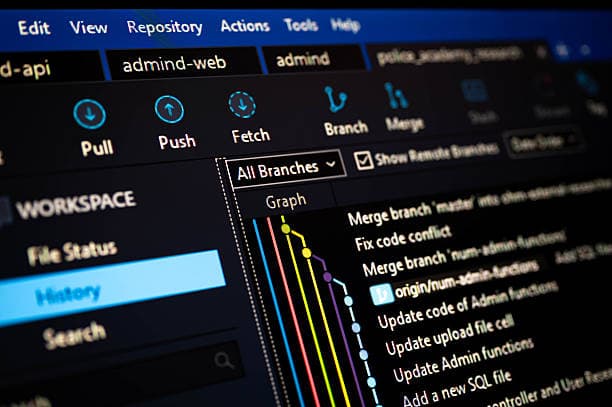
What is Git?
Introduction to Git
Git is a popular version control system used widely by developers and teams for tracking changes in code. Created by Linus Torvalds in 2005 and currently maintained by Junio Hamano, Git helps manage and collaborate on code effectively, enabling multiple developers to work on projects from anywhere in the world.
Why Use Git?
Tracking Code Changes: Git records every change made to the codebase, helping track modifications and understanding the evolution of a project.
Identifying Contributors: Git tracks who made each change, so the contributions of every team member are clear.
Facilitating Collaboration: Git allows multiple developers to work on the same project without overwriting each other’s changes.
What Does Git Do?
Git’s primary functions help developers manage and maintain projects smoothly and are divided into a few main areas:
Manage Projects with Repositories:
- A repository is essentially a project or folder managed by Git. It keeps track of every version of the files in that folder.
Clone a Project:
- Developers can create a local copy of a project by cloning it from an online repository. This allows work to happen offline.
Control Changes with Staging and Committing:
- Changes are staged (selected for addition to the repository) and then committed (permanently saved to the repository), giving developers control over what changes are added.
Branch and Merge:
- Developers can create separate branches to work on different parts of a project or features simultaneously without impacting the main codebase. Later, branches are merged back into the main project.
Pull and Push:
Working with Git: Key Concepts and Workflow
Initialize Git on a Folder:
- When starting a new project, initialize Git in a folder. This action makes the folder a repository, and Git creates a hidden
.git folder to track all changes.
Making Changes and Staging:
Every time a file is changed, added, or deleted, Git detects it as modified.
To save changes, stage the files you want to add to the repository.
Commit Changes:
- After staging, commit the changes to take a permanent snapshot. This lets you save specific versions of your code, with each commit creating a checkpoint you can return to if needed.
Track and View History:
- Git enables you to view the full history of all commits, so you can see what changes were made and by whom. You can even revert to a previous commit if necessary.
Efficient Storage:
- Git doesn’t create a new copy of every file with each commit. Instead, it tracks the differences, which makes it memory efficient and faster.
Why Git is Popular
Over 70% of developers use Git.
Git facilitates teamwork from any location, making it ideal for global collaboration.
Developers can track and view the entire history of a project, making it easy to review the evolution of code.
Git’s revert feature allows returning to earlier versions, making it safer to experiment with new ideas.
What is GitHub?
GitHub is a platform that hosts Git repositories, adding a collaborative layer on top of Git’s features. GitHub offers tools that work seamlessly with Git, helping developers share code, manage projects, and contribute to open-source projects. Acquired by Microsoft in 2018, GitHub is the largest host of source code in the world.
Remember: Git and GitHub are not the same. Git is the version control system, while GitHub is a hosting service that uses Git.
Installing Git and Initializing a Repository
Step 1: Download Git
Git is free to download and install. You can get it from the official Git website:
Step 2: Open the Command Line Interface
To start using Git, we’ll work with a command shell. Here are the options for different operating systems:
Windows: Use Git Bash, which is included with Git for Windows.
Mac & Linux: Use the built-in terminal.
Step 3: Verify the Git Installation
After installing Git, open your command shell and check if Git is installed correctly:
git --version
Expected Output:
If Git is installed, the output will show the version number, like:
git version 2.30.2.windows.1
Note: the version number depends on the current version you are installing, so this might differ from what you display on your system
Every Git commit uses a name and email address to identify the contributor. Setting these globally will apply your details to every Git repository on your computer.
Set Your Name:
git config --global user.name "YourName"
Set Your Email Address:
git config --global user.email "youremail@example.com"
Setting Name and Email per Repository:
If you want to specify a different name/email for a specific repository, leave out the --global flag.
Run the command within the repository folder.
Step 5: Creating a Project Folder
Let’s create a new folder for your Git project and navigate to it:
Create a Directory:
mkdir myproject
Navigate to the Directory:
cd myproject
Step 6: Initializing Git
Now that you’re in the correct directory, it’s time to initialize Git in that folder. This command will tell Git to start tracking changes:
git init
Expected Output:
Initialized empty Git repository in /path/to/your/myproject/.git/
- Explanation: This command creates a hidden
.git folder within your project directory, where Git will store all version history and track changes.
Tip: If you already have a folder you’d like to turn into a Git repository, navigate to it in your command line or right-click on the folder and select "Git Bash here" (for Windows users) to start working with Git immediately.
Summary
Download Git from https://www.git-scm.com.
Verify Installation: Use git --version.
Configure Name & Email: Use git config --global user.name and git config --global user.email.
Create & Navigate to Project Directory: Use mkdir and cd.
Initialize Git in the project directory with git init.
With these steps completed, you’re now ready to start working with Git on your project! In the next lesson, we’ll cover tracking and committing changes to your Git repository.
Git Adding New Files
After initializing your Git repository, it’s currently empty, so let's add some files. In this lesson, we’ll use Python files as examples, and we’ll explore Git's staging environment and how to prepare your code for your first commit.
Step 1: Create New Files
Start by creating a new Python file, hello.py, in your project folder. You can use your preferred text editor or create it directly in the terminal:
hello.py
print("Hello, Git!")
After saving this file in the project folder, let’s take a look at Git’s staging environment.
Understanding Git’s Staging Environment
The staging environment in Git allows you to select specific files for tracking and saving in your repository. When you reach a milestone, or finish a part of your work, you’ll add files to this staging area. Files in the staging area are “staged” and ready to be committed (saved permanently) to your repository.
Step 2: Stage the hello.py File
To add hello.py to the staging area, use:
git add hello.py
Check Git Status
After adding the file, you can check the status to see if it’s successfully staged:
git status
Expected Output:
On branch master
No commits yet
Changes to be committed:
  (use "git rm --cached ..." to unstage)
        new file:   hello.py
The output shows that hello.py is in the staging environment and ready for your first commit.
Step 3: Adding Multiple Files to the Staging Environment
If you’re working on multiple files, Git allows you to stage more than one file at a time. Let’s create two additional files: a README.md for project documentation and a Python script for data operations.
README.md
# My Git Project
This is a sample project to learn Git using Python examples.
data_operations.py
def add(a, b):
return a + b
def subtract(a, b):
return a - b
After saving these files, you can add all the files in your directory to the staging environment by using:
git add --all
Alternatively, you can use the shorthand -A:
git add -A
Check Git Status Again
git status
Expected Output:
On branch master
No commits yet
Changes to be committed:
  (use "git rm --cached ..." to unstage)
        new file:   README.md
        new file:   data_operations.py
        new file:   hello.py
Now all files are in the staging environment, ready for your first commit.
Git Commit: Saving Changes to Your Repository
Now that you’ve staged files in Git’s staging environment, it’s time to commit them. A commit in Git is like a “save point” or snapshot of your current project state, allowing you to save your changes and come back to them later if needed.
Step 1: Committing Your Staged Files
To make a commit, use the git commit command along with the -m flag to add a short message describing what changes you’re saving.
git commit -m "Initial commit: added hello.py, README.md, and data_operations.py"
What the Command Does:
git commit tells Git to commit the staged changes.
-m stands for “message” and allows you to add a commit message directly from the command line.
"Initial commit: added hello.py, README.md, and data_operations.py" is the message describing the changes. This is helpful when you or others need to understand what each commit accomplishes.
Why Write Descriptive Commit Messages?
Descriptive commit messages are crucial in Git, especially when collaborating with others or revisiting your own work later on. A good commit message gives context to the changes you’ve made.
Step 2: Checking the Commit History
To view a log of all commits you’ve made, use the git log command:
git log
Example Output:
commit 1a2b3c4d5e6f7g8h9i0j1k2l3m4n5o6p
Author: Your Name <your.email@example.com>
Date:   Mon Oct 28 10:32:40 2024

    Initial commit: added hello.py, README.md, and data_operations.py
Each commit in Git has a unique ID (known as a SHA-1 hash), allowing you to reference specific versions of your project. This log provides a detailed history of your work.
Making Additional Commits
If you make changes to any files, you can stage and commit them again to save a new snapshot of your project’s state. Let’s modify our hello.py file and add a new feature to data_operations.py to see how this works.
hello.py
print("Hello, Git!")
print("Welcome to version control with Git!")
data_operations.py
def add(a, b):
return a + b
def subtract(a, b):
return a - b
def multiply(a, b):
return a * b
Stage the Changes:
git add --all
Commit the Changes:
git commit -m "Updated hello.py with a welcome message, added multiply function to data_operations.py"
Step 3: Undoing Commits
Git makes it easy to roll back changes if necessary. Here are some useful commands for undoing commits:
Undo Last Commit (Keep Changes in Staging):
git reset --soft HEAD~1
Undo Last Commit and Unstage Changes:
git reset HEAD~1
Discard All Changes:
git reset --hard HEAD~1
Warning: --hard will delete any uncommitted changes permanently.
Summary of Key Commands
| Command | Description |
git commit -m "message" | Commits staged changes with a message |
git log | Shows a log of previous commits |
git diff | Shows changes made since the last commit |
git reset --soft HEAD~1 | Undo the last commit but keep changes staged |
git reset HEAD~1 | Undo the last commit and unstage changes |
git reset --hard HEAD~1 | Undo the last commit and discard changes completely |
By committing your changes, you’re effectively building a history of your project that you can navigate, inspect, and return to whenever needed. In the next lesson, we’ll dive into Git branching, a powerful feature that enables you to work on new features independently without affecting the main project.
Working with Git Branches
In Git, branches allow developers to work on separate versions of a repository simultaneously. This approach is especially useful when working on a large project with multiple features or updates. Let’s see how Git branching makes it easier to manage these changes without disrupting the main codebase.
Understanding the Role of Branches
Imagine you're developing a Python project, and you need to implement a new feature or update existing functionality. Here's how branching can simplify this process:
Without Git:
You’d manually create copies of files you want to modify.
Any urgent bug fixes would require you to track which files have been duplicated, potentially missing updates when merging files back into the main version.
It’s easy to make mistakes and forget which file is the latest.
With Git:
You can create a new branch for the new feature, edit the code there, and later merge it back with the main branch without affecting other branches.
Urgent fixes can be done in a separate branch and merged into the main project, so each branch remains isolated.
Creating and Working with Git Branches
Let's walk through working with branches in a Python project.
Creating a New Branch
When you want to start a new feature, create a branch:
git branch add-feature-x
This command creates a new branch called add-feature-x. You can see a list of all branches by running:
git branch
You'll see output similar to:
  add-feature-x
* main
The * indicates the branch you’re currently on. To switch to your new branch, use:
git checkout add-feature-x
Or, to create and switch to a new branch in one command:
git checkout -b add-feature-x
Adding Code to Your New Branch
Suppose we're adding a new feature to a Python file, main.py. Let's create a function that adds two numbers, then commit it to the new branch.
Edit main.py:
def add_numbers(a, b):
return a + b
Check the branch status:
git status
This will show the modified file:
 On branch add-feature-x
 Changes not staged for commit:
   (use "git add <file>..." to update what will be committed)
   modified:   main.py
Stage the changes:
git add main.py
Commit the changes:
git commit -m "Added add_numbers function"
Handling Urgent Fixes with a New Branch
Suppose there's an urgent bug in the main branch. Instead of abandoning your work in add-feature-x, you can save your changes, switch to the main branch, and create a separate branch for the fix.
Switch back to main:
git checkout main
Create a new branch:
git checkout -b quick-fix
Make and commit the fix:
def multiply_numbers(a, b):
return a * b
Then stage and commit:
 git add main.py
 git commit -m "Fixed multiplication function bug"
Merge the quick-fix branch back into main:
 git checkout main
 git merge quick-fix
Merging Your Feature Branch Back to Main
After finishing the feature in add-feature-x, you’ll merge it into main.
Switch to main:
git checkout main
Merge add-feature-x:
git merge add-feature-x
Delete the feature branch (optional, to keep things organized):
git branch -d add-feature-x
Handling Merge Conflicts
If there’s a conflict, Git will indicate which files need attention. Open the file and look for conflict markers like:
    code<<<<<<< HEAD
    current code in main branch
    =======
    code in add-feature-x branch
    >>>>>>> add-feature-x
Modify the file to your preference, then stage and commit the resolved file:
    git add main.py
    git commit -m "Resolved merge conflict in main.py"
Understanding Merging in Git
Merging in Git is the process of integrating changes from one branch into another. It allows you to combine separate lines of development, such as when a feature branch is completed and ready to be merged into the main branch. Merging is especially helpful when multiple developers are working on different parts of a project, or even when a single developer wants to isolate new features or fixes in different branches.
Key Concepts in Merging
Fast-forward Merging:
A fast-forward merge occurs when there are no new commits on the target branch since the branch you're merging was created. This is essentially a simple update where the target branch "catches up" with the commits on the other branch by advancing its pointer forward.
Example: If you have a main branch and create a feature branch from it, and only work on feature without any new changes to main, Git will perform a fast-forward merge when merging feature back into main.
Three-way Merge:
A three-way merge is performed when the target branch and the branch you're merging both have new commits since the branches diverged. Git will identify the common ancestor of both branches and compare the changes made on each branch to combine them.
This type of merge may result in a merge conflict if changes have been made to the same part of a file in both branches.
Merge Conflict:
- Merge conflicts occur when Git cannot automatically reconcile differences between branches. When a file has been modified differently in two branches, Git requires you to manually resolve these conflicts. After resolving, you need to commit the merge to finalize it.
Let’s go through these types with examples and commands to illustrate each step.
Merging a Branch - Step-by-Step Example
Imagine we have a Python project, and you’re working on a feature branch to add a new function. Meanwhile, a bug was fixed in the main branch. After completing your work on the feature branch, you now want to merge these changes into main.
Initial Setup
cd your_project_directory
git checkout main
Creating and Working on a New Branch
Create a new branch for adding a feature.
git checkout -b add-feature
Add new code in a Python file.
def new_feature():
print("This is a new feature")
Stage and commit the changes in the add-feature branch.
 git add main.py
 git commit -m "Added new feature function"
Switch to the main branch to simulate fixing a bug there.
git checkout main
Edit the same file in main branch for the bug fix and commit it.
def bug_fix():
print("This is a bug fix")
 git add main.py
 git commit -m "Fixed a bug"
Merging the add-feature Branch into main
Switch to main branch if you’re not already on it.
git checkout main
Attempt the merge of add-feature branch into main.
git merge add-feature
Since main.py was modified in both branches, Git will likely generate a merge conflict.
Resolving Merge Conflicts
Git will indicate the files with conflicts. Open the file in your editor to resolve the conflict.
def new_feature():
print("This is a new feature")
<<<<<<< HEAD
def bug_fix():
print("This is a bug fix")
=======
def another_function():
print("This is another function")
>>>>>>> add-feature
Resolve the conflict by editing the file to keep both functions as needed.
def new_feature():
print("This is a new feature")
def bug_fix():
print("This is a bug fix")
def another_function():
print("This is another function")
Stage the resolved file and complete the merge.
 git add main.py
 git commit -m "Merged add-feature with bug fix"
Checking the Merge Results
After merging, you can confirm the history of changes and validate that both the bug fix and the new feature are present:
git log --oneline --graph --all
Summary of Merging Process
Choose the correct branch to merge into: Always be on the branch you want to merge changes into.
Start the merge: Use git merge <branch-name> to begin merging the specified branch.
Resolve conflicts: If conflicts occur, Git will mark them in the files; resolve them by choosing which code to keep.
Finalize the merge: Stage the resolved files and commit the merge to complete the process.
Handling Merge Conflicts Efficiently
Use git diff to inspect conflicts: git diff shows what has changed in the conflicting areas, making it easier to resolve.
Abort a merge if needed: If the merge becomes too complicated or you need to start over, use git merge --abort.
Practice safe merging: Regularly commit changes and create branches for distinct features or fixes to minimize conflicts.
Using Git branches and merging allows you to work on multiple aspects of a project safely, keep changes isolated, and integrate them when you’re ready.
Working with Multiple Branches
By branching, you can seamlessly work on various features, perform bug fixes, and even test new ideas without risking the stability of the main code. Each branch operates independently, and only when you’re ready, you can merge changes back into main.
Branching allows for a cleaner, more organized project structure and ensures safer development. Try practicing with branches to become familiar with switching, merging, and resolving conflicts. This flexibility is one of Git’s most powerful features.